
A Linksys WRT54G router contains a basic firewall to help protect your home network. A Firewall blocks incoming connections by nature. Sometimes you need to unblock some of these connections so you can run a game or application. This is called opening a port or port forwarding. Port forwarding is literally forwarding a port from the Internet to your home network.
In order to open Linksys WRT54G ports you need to:
- Setup a static IP address on the device or computer you are forwarding these ports to.
- Login to your Linksys WRT54G router.
- Make your way to the port forwarding section of the Linksys WRT54G router.
- Click the Security link.
- Uncheck Block Anonymous Internet Requests.
- Click the Save Settings button.
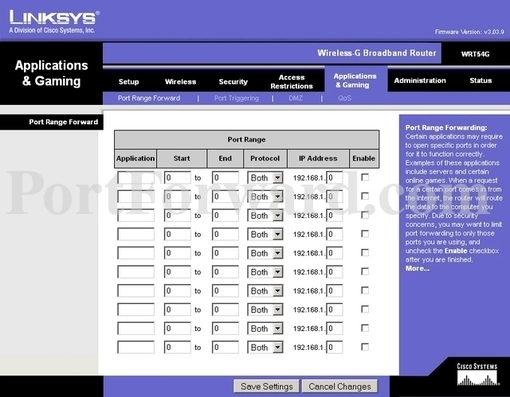
- Click the Applications & Gaming link.
- Click on Port Range Forward.
- Lastly, you want to create a port forward entry.
If this sounds difficult you are not alone. We will walk you through each step in opening a port for the Linksys WRT54G router.
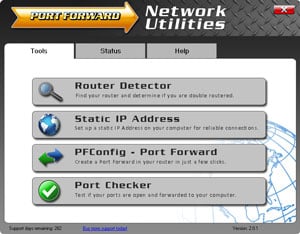
We think that forwarding a port should be easy. That's why we created Network Utilities. Our software does everything that you need to forward a port.
When you use Network Utilities you get your port forwarded right now!
Step 1
It is important to setup a static ip address in the device that you are forwarding a port to. This ensures that your ports will remain open even after your device reboots.
- Recommended - Our free Static IP Setter will set up a static IP address for you.
- Another way to get a permanent IP address is to set up a DHCP reservation.
- Or, manually create a static ip address with our Static IP Guides.
This step is important because you want a permanent IP address in your device. If you do not set up a permanent IP address in your device, then when you device reboots it may get a new IP address.
Use a VPN Instead
Have you considered using a VPN instead of forwarding a port? For most users, a VPN is a much simpler and more secure choice than forwarding a port.
We use and recommend NordVPN because not only is it the fastest VPN, it includes a new feature called Meshnet that makes forwarding a port no longer necessary for most applications. With NordVPN Meshnet, you can connect to your devices from anywhere in the world, completely secure, over a highly encrypted VPN tunnel.
Every time you click on one of our affiliate links, such as NordVPN, we get a little kickback for introducing you to the service. Think of us as your VPN wingman.
Step 2
It is time to login to the Linksys WRT54G router. To do this you need to use a web browser because the Linksys WRT54G router uses what is called a web interface.
It normally doesn't matter what web browser you use so go ahead and open up your favorite. If you don't have a favorite or are confused, open up Chrome, Firefox, or Internet Explorer.
Once you have opened up a web browser, find the address bar. This is usually at the top of the page like the image below shows.
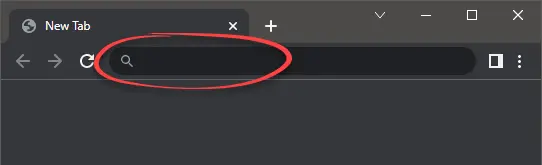
Above is an example of what a web browser address bar looks like. Find the address bar in your router and type in your router's IP address.
The default Linksys WRT54G IP Address is: 192.168.1.1
Once you have finished entering your router's IP address in the address bar click the enter button on your keyboard. A box similar to the one below should appear:
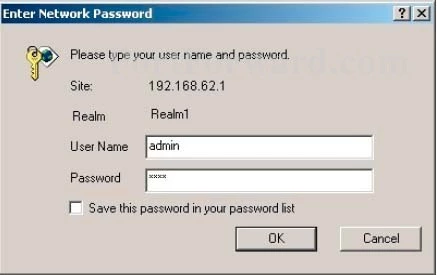
In this box you should see a space for a username and password.
- The Default Linksys WRT54G Router Username is: blank
- The Default Linksys WRT54G Router Password is: admin
Go ahead and enter the username and password for the Linksys WRT54G router in the spaces available. Remember if you have changed them in the past, you need to enter those values.
Enter your username and password, and then click the Login button to log in to your Linksys WRT54G router.
Linksys Usernames and Passwords
If the username and password did not work I recommend checking out our Default Linksys Router Passwords page.
If, after trying the above list of passwords you still can't login you may need to consider a reset for your router. Learn how to do that by reading our How to Reset a Router guide. After resetting the Linksys WRT54G router your username and password are reverted back to factory defaults.
Step 3
After a successful login to the Linksys WRT54G router you need to find the port forwarding section. We begin on the home page of your router.
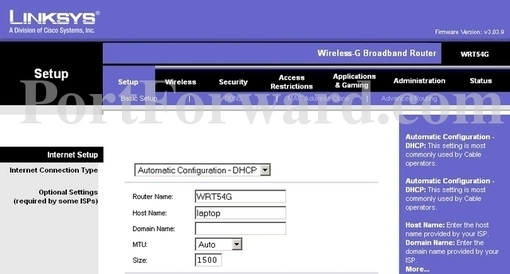
First, you click the Security option at the top of the page.
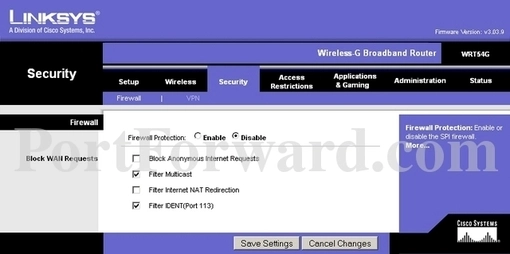
You should now be on a page that says Firewall in the left sidebar of the page.
- Uncheck the box labeled Block Anonymous Internet Requests.
- Select the Save Settings button at the bottom of the page.
Now click the option at the top of the page labeled Applications & Gaming.
A new menu just below the black bar should appear. Select the option of Port Range Forward.
Step 4
Here are the ports to forward for Xbox Live:
- TCP Ports: 3074
- UDP Ports: 3074
If you are looking for the ports for a different application you can find it by either:
- Browsing our List of Games
- Check out our our List of Games by Genre
- See our List of all Applications
Don't forget to sign up for NordVPN's promo deal before it's gone.

You might notice that most of our site doesn't have ads on it. This is because we use partnerships with companies like NordVPN to keep the site running. Thank you for supporting us by using our referral links.
Put a name for this forward in the Application box so that you can remember why you set this forward up. The name does not matter so pick something that has meaning to you.
If you are forwarding a single port, enter that port number into the Start and the End boxes. If you are forwarding a range of ports, enter the lowest number of that range into the Start box. Then enter the highest number of that range into the End box.
Use the Protocol dropdown box to select the protocol type of the ports you are forwarding.
You need to enter the IP address that you are forwarding ports to in the IP Address box. It's possible for this to be either the IP address of your computer or any other IP address on your network that you want ports forwarded to.
Put a checkmark in the Enable checkbox.
When you are completely finished, click the Save Settings button at the bottom of the page to apply these changes.
Test if Your Ports are Open
Finally, I strongly recommend testing to see if you forwarded the Linksys WRT54G ports correctly. To do this you can use our Network Utilities tool, which includes a free Open Port Checker. This Open Port Checker is the only online port checking tool that has Guaranteed Results
Other Guides You May Be Interested In:
- Learn more about how to Setup your router.
- A full listing of all our games and applications that require port forwarding.